Shopping cart software for social-first sellers
Your shop, one link from every post.
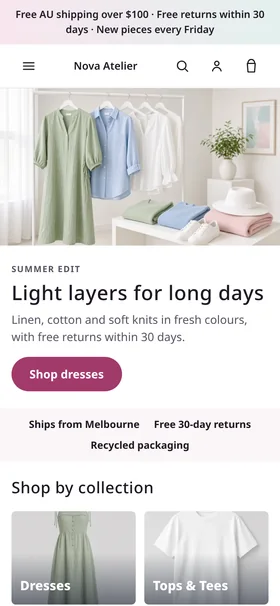
CleverCart is affordable shopping cart software for anyone starting an online shop. Quick to set up, built for TikTok and Instagram, with a guest checkout that takes 2-3 taps. Connect your own Stripe account, and payments go straight to you.
Free plan: 10 products, no card needed. No CleverCart transaction fees on any plan.
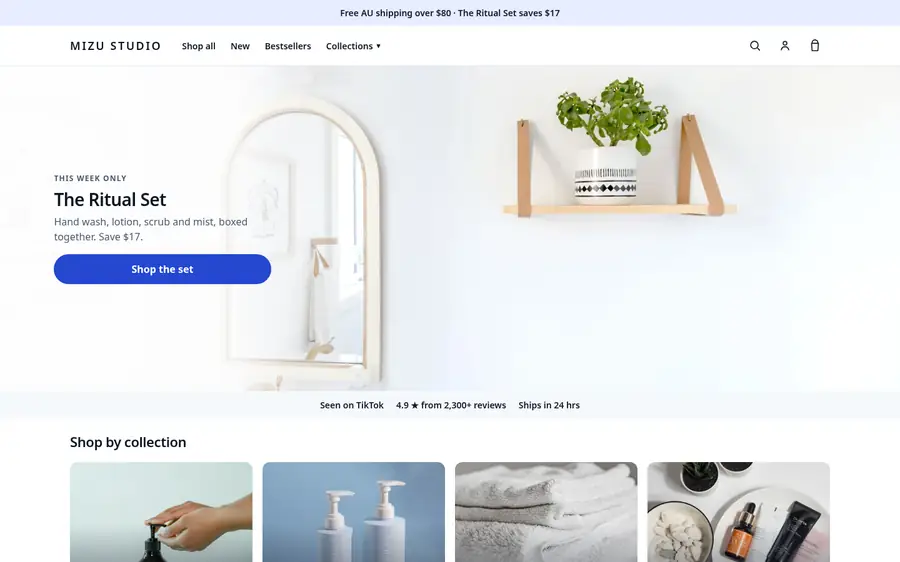
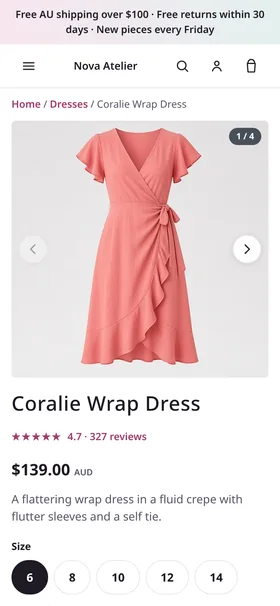
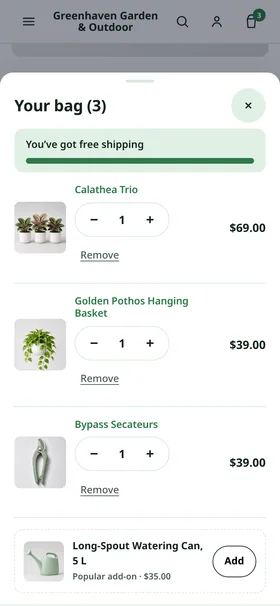
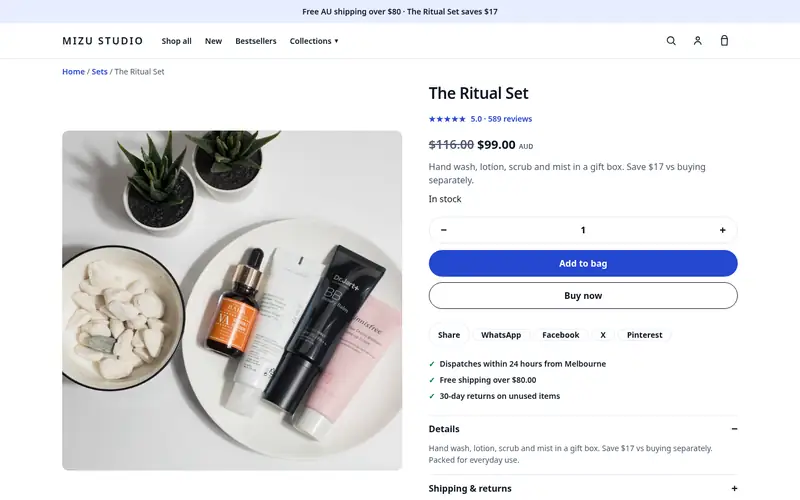
Lab tests on the live demo shops, Nov 2026. Real-world speed depends on photos, network and device.
Made for sellers on
- TikTok
- Link in bio
A social-first shop for people who just want to sell
Shopify's $5 Starter plan is now closed to new stores, which leaves a gap for small sellers. CleverCart is built to fill it.
Social-first
Every shop and product has a clean link made for TikTok and Instagram bios, stories and chats, plus a QR code for packaging and cards. You can also record an order for a sale taken in Instagram, Facebook, TikTok or WhatsApp messages, at a market, in person or by phone.
Honest pricing
Four clear subscription plans and no CleverCart transaction fees on any plan. Stripe's standard fees apply, so there are no surprises.
Simple for small catalogues
Quick to set up: name your shop, pick a theme, add products with photos and prices, and share your link.
Everything between a post and a paid order
Pick a topic to see how it works. Items marked "Coming soon" are on the roadmap and not yet available.
A shop that looks like your brand
Choose a theme, add your name, bio and photos, and your shop page is ready: collections, product pages and a cart drawer that opens right on the page.
- Two themes to start: calm and minimal, or bold and playful
- Mobile-first shop and product pages
- A slide-in cart drawer, one tap from checkout
- Your shop at clevercommerce.com/cart/s/your-name
- Spam protection (rate limits) on the order lookup, contact and newsletter forms
- Optional spam filter for the contact form and newsletter sign-up, off by default. It blocks simple bots, and it isn't full protection
- Your own domain Coming soon
Record an order, or sell from the link
Record a sale taken in a message, at a market or in person, paid outside CleverCart or marked not paid yet. You can also switch on a light link-in-bio page for your profile. Your shop and every product still get a share-ready link, so the thing you post is one tap from the thing people buy.
- Record an order for a sale taken in Instagram, Facebook, TikTok or WhatsApp messages, at a market, in person or by phone, and paid outside CleverCart: bank transfer or PayID, cash, your own card reader, or another way. Stock comes off, the order shows in Orders, Customers and Reports, and the sales channel is recorded. CleverCart does not take or process these payments, and it doesn't connect to card readers or message apps
- Record an order as “Not paid yet” and the stock is held. It's clearly marked Unpaid in Orders, the dashboard and Reports, and isn't counted as revenue until you mark it paid. A ready-to-copy payment request includes the items, total and your saved bank or PayID details. Cancelling puts the stock back. The seller copies and sends the message themselves: CleverCart doesn't send it, and there's no payment matching
- Take a deposit or part payment on an unpaid recorded order. You can take a deposit when recording the order: it's saved as the first part payment, and it can be a percentage of the total, such as 30%. The order shows what's been paid and what's left, it isn't counted as a sale until it's fully paid, and it shows “Paid in N parts”. The seller records the deposit themselves: this is not an online deposit checkout
- Unpaid follow-ups: the oldest unpaid orders are listed first, a Follow up badge appears after 3 days, there's a friendly reminder message to copy, and the dashboard shows a count. “I sent a reminder” records when and how often a reminder was sent, and Follow up comes back 3 days after the last reminder. The seller still copies and sends the reminder themselves: CleverCart doesn't send it
- The unpaid list downloads as a CSV
- The unpaid list also prints as an A4 tick-off sheet, with an “Only pickup orders” option. The sheet is not a shipping label
- An opt-in link-in-bio page per shop. It's a light, fast mobile page with the shop name, headline, social icons, a Shop button, link buttons and up to 12 featured products with sale and sold-out tags. You can choose the order of featured products, and drag to reorder them in admin. It includes a QR code for stalls and packaging, and visits are tagged so orders show they came from the link in bio, for example instagram / link-in-bio. The link-in-bio QR code counts scans and shows as “qr-code” in Sources. Simple, privacy-friendly visit and tap counts for 7 and 30 days use no cookies and no tracking script
- One link per shop and per product
- QR codes for packaging, cards and markets
- Printable price tags: an A4 sheet with a QR code per product that opens the product page, for market stalls. You can print 1–30 tags per product and up to 150 per sheet, with one tag per size or colour at its own price. You can also print price tags for every product with one tag (such as “Market”), using counted QR codes. A price tag is not a shipping label
- A QR codes page with a printable A4 stall sign: the shop name, a headline, a big QR code that opens the shop, and optional bank or PayID details. A stall sign is not a shipping label
- Scan counts per code for 7 and 30 days, including the stall sign, price tags and the link-in-bio QR code. No cookies, bots aren't counted, and nothing about the shopper is stored
- A bag-link builder: one link that fills a shopper's bag with the products you choose, and can include a discount code
- Share a link that applies a code automatically, by adding ?discount=CODE
- An "Ask about this on WhatsApp" button on product pages
- Send a ready-to-pay bag link on WhatsApp. That's an ordinary WhatsApp link; CleverCart never sends messages itself
- Set the title, description and share image for your shop and products, so you control how they appear on Google and when shared
Guest checkout in 2-3 taps
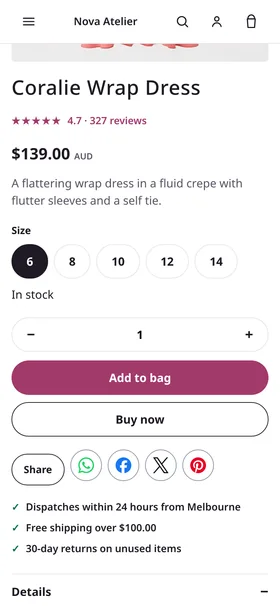
Connect your own Stripe account, and payments go straight to you. Shoppers don't need an account. They tap Buy now and pay on Stripe's secure checkout. Stripe's standard fees apply. More payment providers coming soon.
- Open the product link, tap Buy now, pay by card
- If you turn on delayed payments in your own Stripe, such as bank debits, the order shows “Waiting for the bank”. Stock is taken and the sale is counted only once the payment clears. A failed payment cancels the order. Add two Stripe webhook events. What’s available depends on your Stripe account
- No shopper account to create
- Optional gift message or order note at checkout
- For GST-registered shops, the bag shows “Includes GST”
- A printable receipt or tax invoice (print or save as PDF) from the thank-you page or the order lookup page, with your business name and ABN. CleverCart helps you issue tax invoices. It does not file tax, does not use Stripe Tax, and does not email receipts
- Optional stock holds of about 30 minutes during checkout, so the last item isn't oversold
Send orders and set how they arrive
You set the shipping price, including optional rate bands by order weight or order total. After an order is paid, pick a carrier, enter the tracking number and mark it as sent. Shoppers get a Track parcel link. You can print a packing slip without prices, or a receipt or tax invoice. A packing slip is not a shipping label: CleverCart does not fetch carrier rates, buy postage or print labels.
- Pick a carrier, such as Australia Post, StarTrack, Aramex, CouriersPlease, DHL, NZ Post, USPS, UPS or FedEx, and enter the tracking number
- Shoppers see a Track parcel link when they look up their order
- Cancel an unsent order and put the stock back
- Orders list tabs: All, To send, Sent, Awaiting payment and Cancelled
- Shipping rates per country (AU, NZ, US, Canada and the UK), each with its own free-shipping amount
- For the flat rate, choose the “Posts to” countries. Stripe checkout accepts addresses only in those countries. This is still a flat rate you set; CleverCart does not fetch carrier rates
- Shipping rate bands by order weight or order total, everywhere or per country, up to 30 bands, still with the free-shipping minimum
- Local pickup, with a pickup address and instructions
- Local delivery to the postcodes you choose, with a fee and a minimum order
- Printable packing slips without prices, for one paid order or for many paid orders on one page. A packing slip is not a shipping label
- Tick paid orders and mark them as sent in bulk. Existing tracking is kept, and no email is sent
- Refunds made in your Stripe dashboard sync to the order, and show on the order, the orders list, the shopper's order lookup and the tax invoice. You refund in Stripe, not from CleverCart
- A disputed payment shows on the order with the amount, the reason and the deadline to respond in Stripe, plus a Disputed badge and a dashboard note. Add the dispute events to your Stripe webhook. CleverCart does not respond to or fight disputes; that happens in Stripe
- A Customers page lists everyone who has paid, with their paid orders, total spent (less Stripe refunds), last order and newsletter sign-up. You can search it, and each customer has a page with contact details, their latest address and their orders
- Search orders by order number, email or name. The full order list is paged 200 at a time
- Private notes on each order that only shop staff can see
- Private notes on each customer that only shop staff can see. They show on the customer's page and on their orders
- Tag customers, such as VIP or Trade. The Customers list can be filtered by tag, and the tags show on orders. Only shop staff can see them
- Filter customers by number of orders, amount spent, time since last order and email-list sign-up, combined with search and tags. Filters can be saved by name. You can download just the filtered customers as a CSV with a Tags column
- Filter orders by date range, order total, refunded or not, and discount code or not. Filters combine with search and the tabs, and can be saved by name. You can download just the filtered orders as a CSV
- Tick paid orders for a picking list that adds up every item across them, showing which orders each item is for. It has print and phone layouts and shows no prices. You can also download the picking list as a CSV for the ticked paid orders
- Tag many customers at once: the ticked customers, or everyone in the filtered list
- Record an order for a sale taken in Instagram, Facebook, TikTok or WhatsApp messages, at a market, in person or by phone, and paid outside CleverCart: bank transfer or PayID, cash, your own card reader, or another way. Stock comes off, the order shows in Orders, Customers and Reports, and the sales channel is recorded. CleverCart does not take or process these payments, and it doesn't connect to card readers or message apps
- Tag customers from a spreadsheet: upload Email and Tags columns (a Shopify customer export works). A check page shows the changes before saving. Tags are only added, and only to existing customers
- Edit a recorded order until it's sent or handed over: items, quantities, prices, postage, payment method, customer and delivery. Stock moves by the difference only, and a history of each edit is kept. Only recorded orders can be edited, not checkout orders paid by card
- Record again: repeat any order for a returning customer at today's prices
- Record an order as “Not paid yet” and the stock is held. It's clearly marked Unpaid in Orders, the dashboard and Reports, and isn't counted as revenue until you mark it paid. A ready-to-copy payment request includes the items, total and your saved bank or PayID details. Cancelling puts the stock back. The seller copies and sends the message themselves: CleverCart doesn't send it, and there's no payment matching
- Take a deposit or part payment on an unpaid recorded order. You can take a deposit when recording the order: it's saved as the first part payment, and it can be a percentage of the total, such as 30%. The order shows what's been paid and what's left, it isn't counted as a sale until it's fully paid, and it shows “Paid in N parts”. The seller records the deposit themselves: this is not an online deposit checkout
- Unpaid follow-ups: the oldest unpaid orders are listed first, a Follow up badge appears after 3 days, there's a friendly reminder message to copy, and the dashboard shows a count. “I sent a reminder” records when and how often a reminder was sent, and Follow up comes back 3 days after the last reminder. The seller still copies and sends the reminder themselves: CleverCart doesn't send it
- The unpaid list downloads as a CSV
- The unpaid list also prints as an A4 tick-off sheet, with an “Only pickup orders” option. The sheet is not a shipping label
- Deposit as a percentageAn amount, or a percentage of the total, such as 30%
- Unpaid tick-off sheetA4 printable list, with an “Only pickup orders” option
- Unpaid list CSVDownload the unpaid orders as a CSV
Import, export, add-ons and bundles
Add products one by one, or import your products from a Shopify CSV. Columns are Shopify-compatible, so it's easy to move from Shopify. A preview shows row errors before anything is saved. You can tick “Download photos” to fetch https image links from the file. On each product you can offer add-ons, or sell 2–3 products together as a simple bundle. You can also set a packed weight, turn on low-stock alerts, adjust stock with a reason, and see a stock history of why stock changed.
- Import your products from a Shopify CSV, using Shopify-compatible columns
- A preview shows row errors before anything is saved
- Tick “Download photos” on the preview to fetch https image links from the file. Only products that have no photos yet are filled this way, up to 20 photos per import (8 per product). Existing photos are never replaced
- Stock history on each product, showing why stock changed: edit, import, sale or cancellation
- Adjust stock: add or remove units, or set the count, with a reason (new stock, stock count, damaged, lost or stolen, returned or other) and an optional note. Each change appears in the stock history, and stock never goes below zero
- Export products, customers and orders as CSV
- Shopify's Variant Grams column is used in product CSV import and export
- A packed weight on each product, used for shipping rate bands by weight, and included as the shipping weight in the Google feed
- Low-stock alerts on the products list and dashboard
- Product feed (CSV) download for other tools
- Add-ons: up to 3 per product, either a tick box with a price (for example, gift wrap +$5) or a list of priced choices (for example, a card +$3)
- Simple bundles: 2–3 products sold together at a set price, with a "Buy together" box and a "Save $X" line
- Up to 10 products free, then 500, 5,000 or unlimited. Archived products don't count toward these limits; drafts still do
- Archive products you've stopped selling: they're hidden from the shop and feeds, and they don't count toward the plan's product limit. Shopify CSV “archived” imports and exports as archived
- One-click duplicate makes a draft copy of a product, with its photos, options, collections and add-ons
- Tick products to set them Active, Draft or Archived, or add them to a collection or remove them from one
- Change prices by a percentage, put products on sale with the regular price shown crossed out, or end a sale
- A Stock page lists every option's stock in one table, searchable by product or SKU. Changes need a reason and are saved to the stock history
- Schedule a sale: pick products or a whole collection, set a percentage off, a start time and an optional end time. The regular price shows crossed out, and the sale starts and ends automatically. Sales can be ended early or cancelled
- A price history on each product, covering the editor, CSV import, bulk changes and sales
- A low-stock level per product that overrides the shop-wide level
- Download a stock CSV, count in a spreadsheet, then upload it. Rows are matched by SKU and Shopify column names are read. A check page shows every change before you save, a reason is required, and each change goes into the stock history. The stock upload does not create products or change prices
- Edit the search title and description of many products on one page
- Tag products with up to 10 tags each. The product list filters by tag, tags can be added or removed in bulk, and the products CSV exports and imports a Tags column. You can download the products for one tag as a CSV. Tags are for the shop owner only and shoppers don't see them
- Count stock with a phone: scan a barcode or the SKU with a scanner that types into the field, or the phone keyboard's scan option, or type a barcode, SKU or name, then enter the count. It goes into the stock history, and a sale during the count is never overwritten. There's no camera reader
- A barcode per option, separate from the SKU. It accepts EAN, UPC or a similar code, and duplicates are checked. The phone stock count and stock search find products by barcode. The products CSV exports and imports barcodes. Use a scanner that types into the field, or type the code. There's no camera reader
- A restock list: a low and sold-out filter on Stock, plus a restock CSV download
- Search products by name, SKU or barcode, with Status, Stock, Tag and Collection filters. Filters can be saved, and you can download the filtered products as a CSV
- Printable price tags: an A4 sheet with a QR code per product that opens the product page, for market stalls. You can print 1–30 tags per product and up to 150 per sheet, with one tag per size or colour at its own price. You can also print price tags for every product with one tag (such as “Market”), using counted QR codes. A price tag is not a shipping label
- A QR codes page with a printable A4 stall sign: the shop name, a headline, a big QR code that opens the shop, and optional bank or PayID details. A stall sign is not a shipping label
- Scan counts per code for 7 and 30 days, including the stall sign, price tags and the link-in-bio QR code. No cookies, bots aren't counted, and nothing about the shopper is stored
- Price tags by tagEvery product with one tag, such as “Market”, using counted QR codes
- Printable price tags1–30 per product, up to 150 per sheet; one tag per size or colour
- QR codes page and stall signPrintable A4 sign; scan counts include the link-in-bio QR
Discounts, reviews and what's next
Discount codes, Buy X get Y deals, reviews from real orders, a sales and GST report and a sources report are live on every plan, including Free. Abandoned-cart emails, multiple shops and API access are still on the roadmap.
- Discount codes: percentage off, amount off or free shipping, plus automatic discounts that need no code
- Buy X, get Y: as a code or automatic, buy 1–10 and get 1–10 at up to 100% off, on all products or one collection. The cheapest qualifying items are discounted
- Set a minimum spend, a usage limit and start and end dates
- Share a link that applies a code automatically, by adding ?discount=CODE
- Reviews from real orders: paying shoppers leave a review from the order lookup page. You publish them first, and nothing shows in the shop until you do. CleverCart does not send review request emails
- A sales and GST report by month or quarter, with a CSV export
- Sources report: see which posts, sites and campaigns brought in sales
- Abandoned-cart emails Coming soon
- Multiple shops and multi-location tools Coming soon
- API access Coming soon
- Sales and GST reportBy month or quarter, with a CSV export
- Reviews from real ordersYou publish them first
- Abandoned-cart emailsComing soon

The shortest path from "love it" to "bought"
Connect your own Stripe account, and payments go straight to you. Fewer screens between the post and the payment means fewer people drifting away.
1. Open the product link
It lands straight on the product, with the right photo and price.
2. Tap Buy now
Or Add to bag to keep browsing, then Checkout from the drawer.
3. Pay on Stripe
No account to create. Payments go through your own Stripe account. If you turn on delayed payments in Stripe, such as bank debits, those can be offered too — what's available depends on your Stripe. Stripe's standard fees apply. More payment providers coming soon.
From your first sale to a growing catalogue


What we can show today
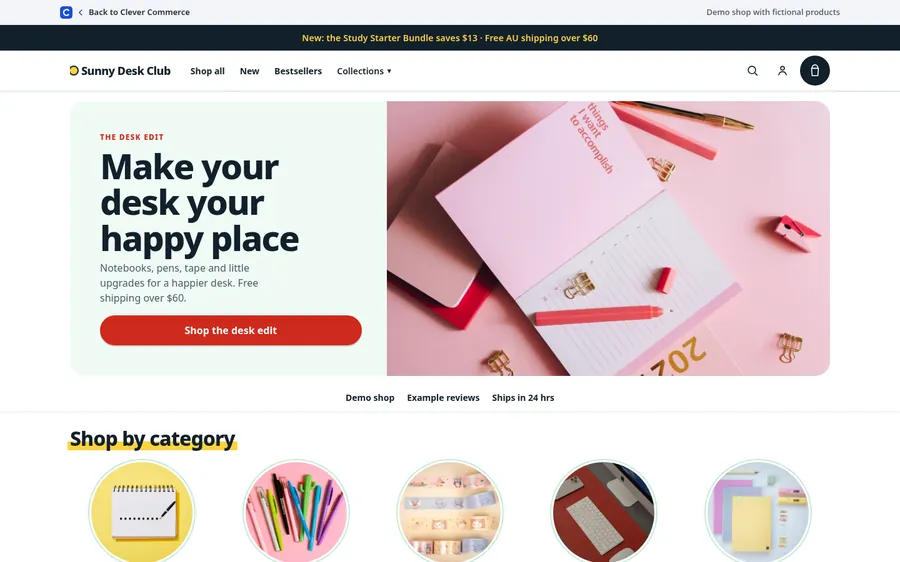
We're new, so we won't invent customers. Here are real facts about the demo shops.
Mobile LCP on the demo shops
Largest Contentful Paint from our lab tests of the live demo shops, Nov 2026.
Guest checkout
From product link: Buy now, details, pay. No shopper account needed.
To explore
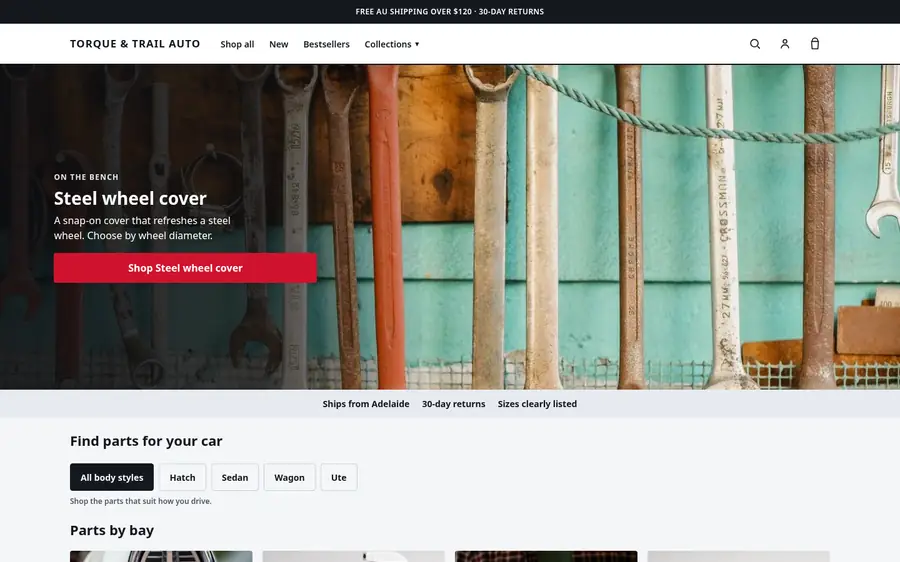
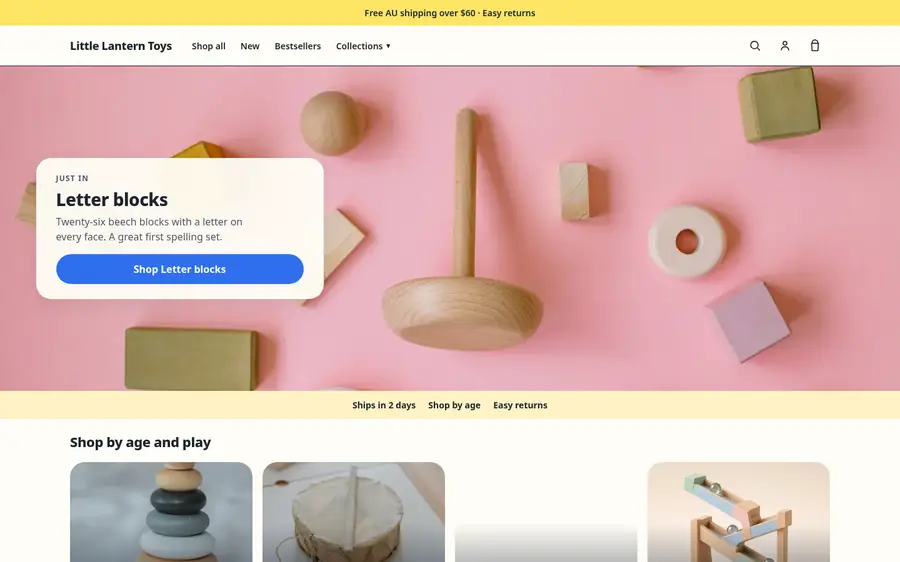
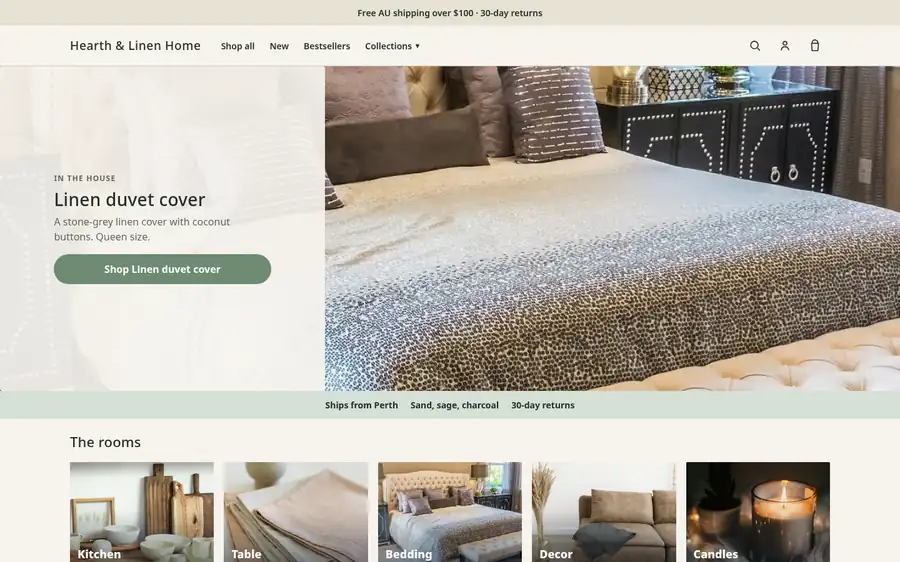
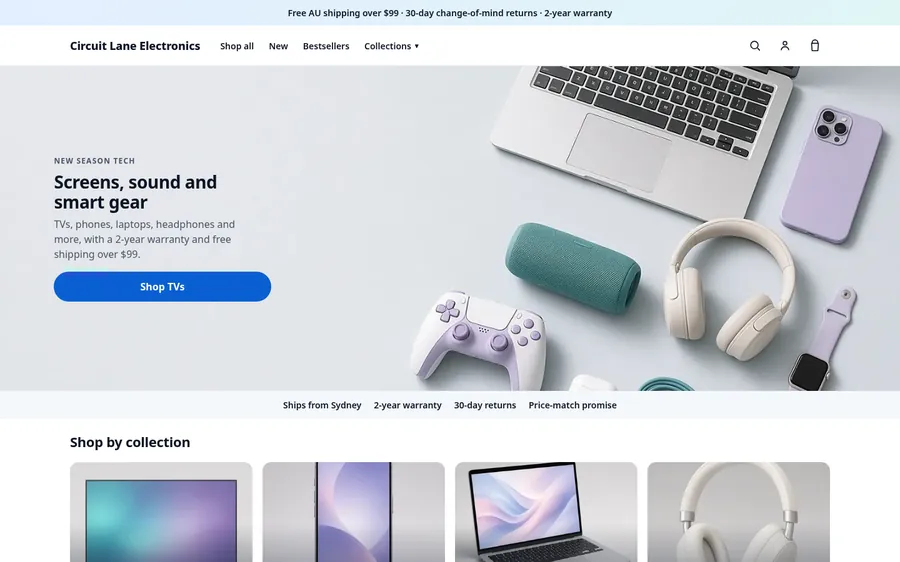
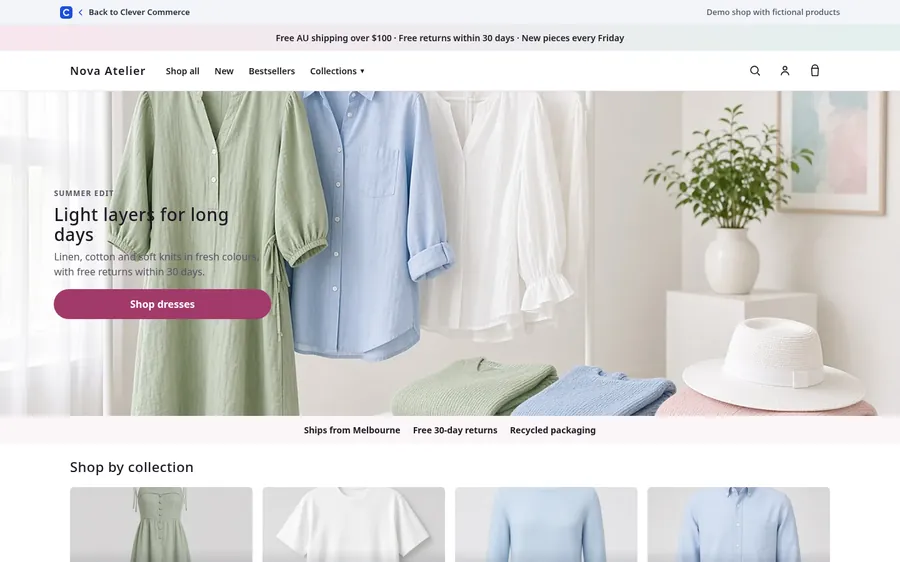
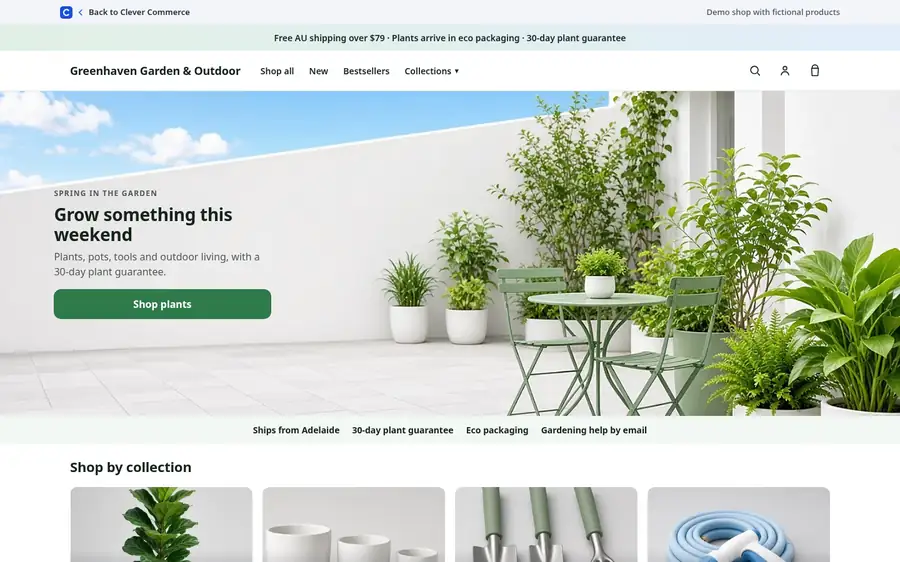
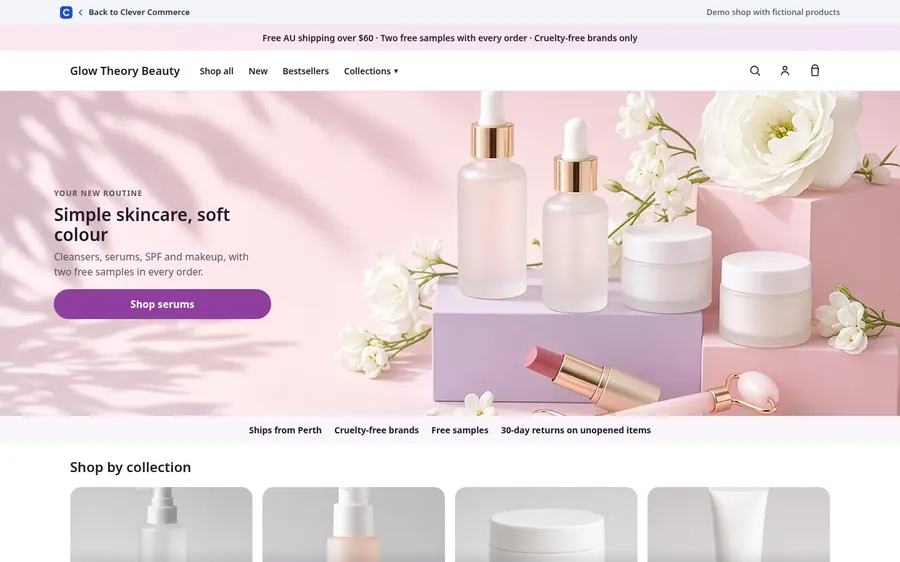
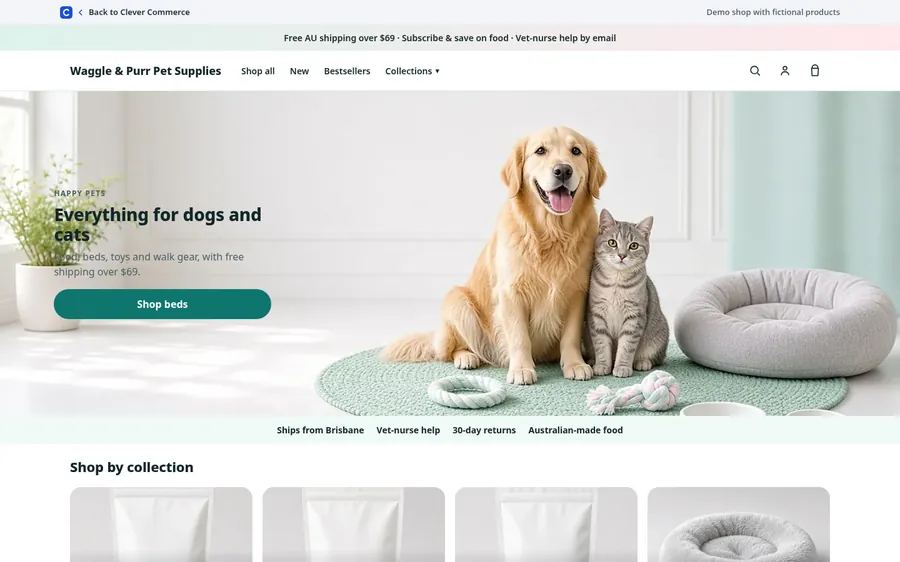
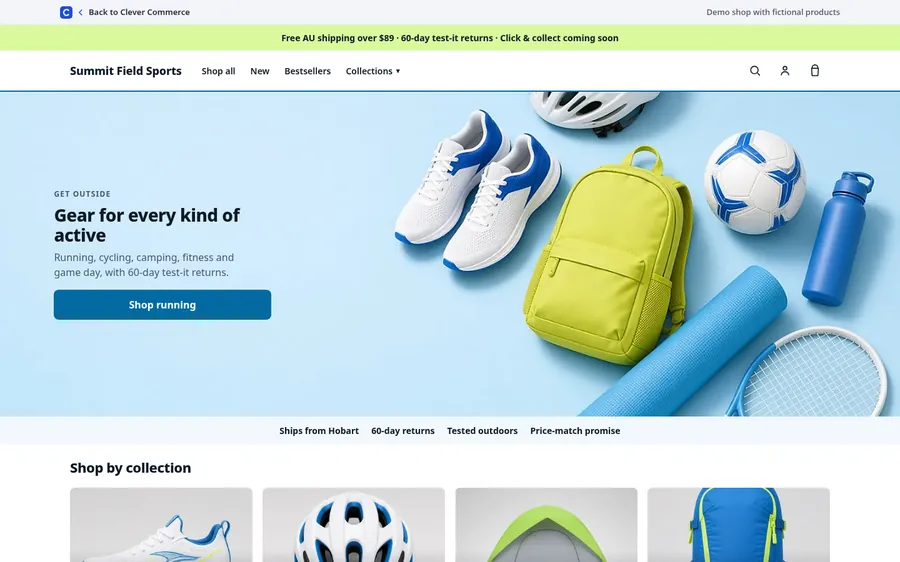
11 demo shops to explore. Click through, add to bag and check out. No card is charged.
What you really pay, laid out plainly
Subscription-only pricing: one plan fee, monthly or yearly. No CleverCart transaction fees on any plan. Connect your own Stripe account, and payments go straight to you. Stripe's standard fees apply.
Free needs no card. Paid plans are a flat subscription, billed monthly or yearly with 2 months free.
No CleverCart transaction fees on any plan. We don't take a cut of your orders.
Stripe's standard fees apply on every plan and are paid to Stripe.
That's the whole list. More payment providers coming soon. Features not built yet are marked "Coming soon".
Free
No card required
- 10 products
- No CleverCart transaction fees
- Guest checkout via Stripe
- Share links, QR codes, link-in-bio
- Discount codes
- Import from a Shopify CSV
- Add-ons and simple bundles
- Shipping rate bands, low-stock alerts and stock history
- Buy X, get Y and reviews from real orders
- Receipts, tax invoices and packing slips
- Stock holds, Stripe refunds and a sales and GST report
- Stock adjustments, Stripe chargebacks and an optional spam filter
- Customers page, order search and archived products
- Delayed payments, “Posts to” countries, product duplicate and private order notes
- Bulk product and order actions, and private customer notes
- Bulk price changes, a Stock page and customer tags
- Scheduled sales, price history and a per-product low-stock level
- Customer filters, a stock spreadsheet and bulk search listings
- Product tags, order filters and counting stock with a phone
- A picking list, option barcodes, tagging many customers, a products CSV for one tag and a restock list
- Record an order, a picking list CSV, product search with saved filters, and customer tags from a spreadsheet
- Edit a recorded order, record again, and an opt-in link-in-bio page
- Unpaid recorded orders, link-in-bio visit and tap counts, and printable price tags
- Deposits and part payments on unpaid orders, unpaid follow-ups, 1–30 price tags per product, and drag to reorder link-in-bio products
- Take a deposit when recording an order, “I sent a reminder”, the unpaid list as a CSV, a printable A4 stall sign, and scan counts
- Price tags for every product with one tag, a counted link-in-bio QR code, deposits as a percentage such as 30%, and an A4 unpaid tick-off sheet
Starter
billed $250 yearly · 2 months free
- 500 products
- No CleverCart transaction fees
- No CleverCart branding
- Discount codes
- Import from a Shopify CSV
- Add-ons and simple bundles
- Shipping rate bands, low-stock alerts and stock history
- Buy X, get Y and reviews from real orders
- Receipts, tax invoices and packing slips
- Stock holds, Stripe refunds and a sales and GST report
- Stock adjustments, Stripe chargebacks and an optional spam filter
- Customers page, order search and archived products
- Delayed payments, “Posts to” countries, product duplicate and private order notes
- Bulk product and order actions, and private customer notes
- Bulk price changes, a Stock page and customer tags
- Scheduled sales, price history and a per-product low-stock level
- Customer filters, a stock spreadsheet and bulk search listings
- Product tags, order filters and counting stock with a phone
- A picking list, option barcodes, tagging many customers, a products CSV for one tag and a restock list
- Record an order, a picking list CSV, product search with saved filters, and customer tags from a spreadsheet
- Edit a recorded order, record again, and an opt-in link-in-bio page
- Unpaid recorded orders, link-in-bio visit and tap counts, and printable price tags
- Deposits and part payments on unpaid orders, unpaid follow-ups, 1–30 price tags per product, and drag to reorder link-in-bio products
- Take a deposit when recording an order, “I sent a reminder”, the unpaid list as a CSV, a printable A4 stall sign, and scan counts
- Price tags for every product with one tag, a counted link-in-bio QR code, deposits as a percentage such as 30%, and an A4 unpaid tick-off sheet
- Own domain Coming soon
Essential
billed $750 yearly · 2 months free
- 5,000 products
- No CleverCart transaction fees
- Everything in Starter
- Abandoned-cart emails Coming soon
Premium
billed $2,200 yearly · 2 months free
- Unlimited products
- No CleverCart transaction fees
- Everything in Essential
- Multiple shops Coming soon
- API access Coming soon
| Compare plans | Free | Starter | Essential | Premium |
|---|---|---|---|---|
| Limits and fees | ||||
| Products | 10 | 500 | 5,000 | Unlimited |
| Archived products don't count toward the product limit | Yes | Yes | Yes | Yes |
| CleverCart transaction fees | None | None | None | None |
| Stripe card fees | Stripe's standard fees apply on every plan | |||
| Storefront | ||||
| Themes, shop pages, cart drawer | Yes | Yes | Yes | Yes |
| CleverCart branding on your page | Shown | Removed | Removed | Removed |
| Your own domain | Not included | Coming soon | ||
| Selling and sharing | ||||
| Record an order (sales paid outside CleverCart; stock, customers and reports) | Yes | Yes | Yes | Yes |
| Unpaid recorded orders (“Not paid yet”; stock held; not counted as revenue until marked paid) | Yes | Yes | Yes | Yes |
| Deposits and part payments on unpaid recorded orders (take a deposit when recording, as an amount or a percentage such as 30%, saved as the first part payment; what's paid and what's left; not a sale until fully paid; “Paid in N parts”) | Yes | Yes | Yes | Yes |
| Unpaid follow-ups (oldest first; Follow up badge after 3 days; “I sent a reminder”; Follow up returns 3 days after the last reminder) | Yes | Yes | Yes | Yes |
| Unpaid list CSV | Yes | Yes | Yes | Yes |
| Unpaid list as an A4 tick-off sheet (with “Only pickup orders”; not a shipping label) | Yes | Yes | Yes | Yes |
| Link-in-bio page (opt-in; choose featured product order, including by dragging in admin; visit and tap counts; QR code counts scans and shows as “qr-code” in Sources) | Yes | Yes | Yes | Yes |
| Printable price tags (A4; 1–30 per product, up to 150 per sheet; one tag per size or colour; or every product with one tag such as “Market”, using counted QR codes; not a shipping label) | Yes | Yes | Yes | Yes |
| QR codes page with a printable A4 stall sign (shop name, headline, a big QR code, optional bank or PayID details; not a shipping label) | Yes | Yes | Yes | Yes |
| Scan counts per code (7 and 30 days, including the stall sign, price tags and link-in-bio QR; no cookies; bots aren't counted; nothing about the shopper is stored) | Yes | Yes | Yes | Yes |
| Guest checkout, cards via Stripe | Yes | Yes | Yes | Yes |
| Delayed payments (when turned on in your Stripe) | Yes | Yes | Yes | Yes |
| Share links, QR codes, link-in-bio | Yes | Yes | Yes | Yes |
| Product feed (CSV) | Yes | Yes | Yes | Yes |
| Import products from a Shopify CSV | Yes | Yes | Yes | Yes |
| Download photos from CSV https links | Yes | Yes | Yes | Yes |
| Export products, customers and orders as CSV | Yes | Yes | Yes | Yes |
| Product add-ons (up to 3 per product) | Yes | Yes | Yes | Yes |
| One-click product duplicate | Yes | Yes | Yes | Yes |
| Bulk product actions (Active, Draft, Archived, or collections) | Yes | Yes | Yes | Yes |
| Bulk price changes and sales | Yes | Yes | Yes | Yes |
| Stock page (every option, searchable by product or SKU) | Yes | Yes | Yes | Yes |
| Scheduled sales (start and end automatically) | Yes | Yes | Yes | Yes |
| Price history on each product | Yes | Yes | Yes | Yes |
| Low-stock level per product (overrides the shop-wide level) | Yes | Yes | Yes | Yes |
| Stock spreadsheet (download, count, upload, with a check first) | Yes | Yes | Yes | Yes |
| Bulk search listings (title and description) | Yes | Yes | Yes | Yes |
| Product tags (up to 10; filter, bulk add or remove, and a Tags column in the products CSV) | Yes | Yes | Yes | Yes |
| Count stock with a phone (scan or type a barcode or SKU) | Yes | Yes | Yes | Yes |
| Barcode per option (EAN, UPC or similar; found in stock count and search) | Yes | Yes | Yes | Yes |
| Download the products for one tag as a CSV | Yes | Yes | Yes | Yes |
| Restock list (low and sold-out filter, plus a restock CSV) | Yes | Yes | Yes | Yes |
| Product search (name, SKU or barcode) with saved filters and a filtered CSV | Yes | Yes | Yes | Yes |
| Simple bundles (2–3 products at a set price) | Yes | Yes | Yes | Yes |
| Discount codes, automatic discounts and code links | Yes | Yes | Yes | Yes |
| Buy X, get Y discounts | Yes | Yes | Yes | Yes |
| Reviews from real orders | Yes | Yes | Yes | Yes |
| Bag-link builder | Yes | Yes | Yes | Yes |
| Ask about this on WhatsApp | Yes | Yes | Yes | Yes |
| Send a bag link on WhatsApp | Yes | Yes | Yes | Yes |
| Gift message or order note at checkout | Yes | Yes | Yes | Yes |
| Optional stock holds at checkout (about 30 minutes) | Yes | Yes | Yes | Yes |
| Search and sharing settings | Yes | Yes | Yes | Yes |
| Spam protection on order lookup, contact and newsletter forms | Yes | Yes | Yes | Yes |
| Optional spam filter on contact and newsletter forms | Yes | Yes | Yes | Yes |
| Sources report | Yes | Yes | Yes | Yes |
| Sales and GST report (month or quarter, with CSV) | Yes | Yes | Yes | Yes |
| Abandoned-cart emails | Not included | Not included | Coming soon | |
| Orders and shipping | ||||
| Order tracking and Track parcel links | Yes | Yes | Yes | Yes |
| Mark as sent, cancel and restock, and order tabs | Yes | Yes | Yes | Yes |
| Shipping rates per country (AU, NZ, US, Canada, UK) | Yes | Yes | Yes | Yes |
| Shipping rate bands (by order weight or order total) | Yes | Yes | Yes | Yes |
| “Posts to” countries for the flat rate | Yes | Yes | Yes | Yes |
| Product weight (Variant Grams and Google feed) | Yes | Yes | Yes | Yes |
| Low-stock alerts | Yes | Yes | Yes | Yes |
| Stock history on each product | Yes | Yes | Yes | Yes |
| Adjust stock (add, remove or set, with a reason) | Yes | Yes | Yes | Yes |
| Local pickup (address and instructions) | Yes | Yes | Yes | Yes |
| Local delivery to chosen postcodes | Yes | Yes | Yes | Yes |
| Receipts and tax invoices | Yes | Yes | Yes | Yes |
| Printable packing slips (without prices) | Yes | Yes | Yes | Yes |
| Bulk packing slips (many paid orders on one page) | Yes | Yes | Yes | Yes |
| Mark paid orders as sent in bulk | Yes | Yes | Yes | Yes |
| Refunds from your Stripe dashboard sync to the order | Yes | Yes | Yes | Yes |
| Stripe chargebacks show on the order | Yes | Yes | Yes | Yes |
| Customers page (everyone who has paid) | Yes | Yes | Yes | Yes |
| Order search (number, email or name) and pages of 200 | Yes | Yes | Yes | Yes |
| Private order notes (only shop staff can see) | Yes | Yes | Yes | Yes |
| Private customer notes (only shop staff can see) | Yes | Yes | Yes | Yes |
| Customer tags (VIP, Trade and so on) | Yes | Yes | Yes | Yes |
| Customer filters (orders, spend, last order, email-list sign-up) | Yes | Yes | Yes | Yes |
| Saved customer filters and a filtered CSV with a Tags column | Yes | Yes | Yes | Yes |
| Order filters (date, total, refunds and discount codes) and a filtered orders CSV | Yes | Yes | Yes | Yes |
| Picking list (ticked paid orders, items added up, no prices; also as a CSV) | Yes | Yes | Yes | Yes |
| Tag many customers at once (ticked or everyone in the filtered list) | Yes | Yes | Yes | Yes |
| Customer tags from a spreadsheet (Email and Tags; added only, to existing customers) | Yes | Yes | Yes | Yes |
| Edit a recorded order (until sent; stock by the difference; edit history) | Yes | Yes | Yes | Yes |
| Record again (any order, at today's prices) | Yes | Yes | Yes | Yes |
| Scale | ||||
| Multiple shops | Not included | Coming soon | ||
| API access | Not included | Coming soon | ||
Prices in USD; AUD pricing available. Paid-plan billing is opening soon; the Free plan is the way to start today. Yearly prices show the monthly equivalent; you are billed the full yearly amount.
Questions, answered plainly
What is CleverCart?
CleverCart is a lightweight shopping cart and shop page for sellers who sell through TikTok, Instagram and chat apps. You get a shop page, product pages, a cart and a guest checkout, all on a link you can share.
How do shoppers pay?
Connect your own Stripe account, and payments go straight to you. Shoppers pay on Stripe's secure checkout. Card payments are available, and if you turn on delayed payments in your own Stripe, such as bank debits, those can be offered too — what's available depends on your Stripe account. If a shopper pays with a delayed method, the order shows “Waiting for the bank”. Stock is taken and the sale is counted only once the payment clears. A failed payment cancels the order. Add two Stripe webhook events. Stripe's standard fees apply. More payment providers coming soon. We don't support Afterpay, Apple Pay, Google Pay or in-person (POS) payments today.
What do I really pay?
Two things: your plan and Stripe's standard fees, which Stripe sets and charges. CleverCart has no transaction fees on any plan, so we never take a cut of your sales. The Free plan has no monthly fee and doesn't need a card.
Do I need to create an account to buy, or to start?
Shoppers check out as guests, so they don't need an account. Sellers sign up for free; no card is needed for the Free plan.
Can I use my own domain?
Not yet. Own-domain support is coming soon for Starter and above. For now, your shop lives at a clevercommerce.com link such as /cart/s/your-shop.
Can I run more than one shop?
Multiple shops, API access, and multi-location or retail-chain tools are on the roadmap for larger plans. They're marked "Coming soon" and aren't available yet.
Are the demo shops real?
They're real CleverCart shops with example products so you can try the whole journey. Checkout on the demo shops is a demo and never charges a card.
How many products can I add?
10 on Free, 500 on Starter, 5,000 on Essential and unlimited on Premium. Archived products are hidden from the shop and feeds, and they don't count toward the plan's product limit. Drafts still count toward the limit. You can download your catalogue as a product feed (CSV).
Do you have discount codes?
Yes, on every plan, including Free. You can create percentage-off, amount-off or free-shipping codes, or automatic discounts that need no code. You can also run a Buy X, get Y deal as a code or automatic discount: buy 1–10 and get 1–10 at up to 100% off, on all products or one collection, with the cheapest qualifying items discounted. Each discount can have a minimum spend, a usage limit and start and end dates. You can also share a link that applies a code automatically, by adding ?discount=CODE to any shop link.
How does shipping and tracking work?
You set the shipping price: a rate per country (Australia, New Zealand, the US, Canada and the UK), each with its own free-shipping amount, plus optional rate bands by order weight or order total, everywhere or per country (up to 30 bands). The free-shipping minimum still applies. For the flat rate, you can choose the “Posts to” countries; Stripe checkout accepts addresses only in those countries. This is still a flat rate you set. You can also offer local pickup (with an address and instructions) and local delivery to postcodes you choose, with a fee and a minimum order. CleverCart does not fetch carrier rates or print labels. After you buy postage on the carrier's own site, open the order, pick a carrier such as Australia Post, StarTrack or Aramex, enter the tracking number and mark it as sent. The shopper then gets a Track parcel link. You can also cancel an unsent order and put the stock back.
Can I import products from Shopify?
You can import your products from a Shopify CSV, using Shopify-compatible columns, so it's easy to move from Shopify. A preview shows row errors before anything is saved. You can tick “Download photos” to fetch https image links from the file. That's only for products that have no photos yet, up to 20 photos per import (8 per product), and existing photos are never replaced. Shopify's Variant Grams column is used in product CSV import and export for packed weight, and that shipping weight is also included in the Google feed. This is not a one-click store migration. You can also export products, customers and orders as CSV.
Can shoppers reach me on WhatsApp?
You can add an "Ask about this on WhatsApp" button on product pages, and send a ready-to-pay bag link on WhatsApp. Both are ordinary WhatsApp links; CleverCart never sends messages itself.
Can I offer add-ons or sell products as a bundle?
Yes, on every plan. You can add up to 3 add-ons per product: a tick box with a price (for example, gift wrap +$5) or a list of priced choices (for example, a card +$3). You can also sell 2–3 products together at a set price. Shoppers see a "Buy together" box and a "Save $X" line when the bundle costs less than buying the items separately.
Can I get a low-stock alert?
Yes, on every plan. You set a shop-wide level, and options at or under it are flagged on the products list and the dashboard. You can also set a low-stock level per product that overrides the shop-wide level.
Can I see why stock changed?
Yes, on every plan. Each product has a stock history that shows why stock changed: edit, import, sale or cancellation.
Can I adjust stock by hand?
Yes, on every plan. You can add or remove stock, or set the count, with a reason (new stock, stock count, damaged, lost or stolen, returned or other) and an optional note. Each change appears in the stock history, and stock never goes below zero.
Can shoppers leave reviews?
Yes, on every plan. Reviews come from real orders: paying shoppers leave a review from the order lookup page, using their email and order number. Nothing shows in your shop until you publish it. CleverCart does not send review request emails, so you can mention the lookup page in a packing note or message if you want reviews.
Do you have receipts and tax invoices?
Yes, on every plan. Add your business name and ABN. For GST-registered shops, the bag shows “Includes GST”. Shoppers can open a printable receipt or tax invoice (print or save as PDF) from the thank-you page or the order lookup page. CleverCart helps you issue tax invoices. It does not file tax, does not use Stripe Tax, and does not email receipts.
Can I print a packing slip?
Yes, on every plan. Packing slips are printable and don’t include prices, for one paid order or for many paid orders on one page. A packing slip is not a shipping label: CleverCart does not fetch carrier rates, buy postage or print labels.
How do refunds work?
On every plan, refunds made in your Stripe dashboard sync to the order, and show on the order, the orders list, the shopper's order lookup and the tax invoice. Add the charge.refunded event to your Stripe webhook. You refund in Stripe, not from CleverCart.
What happens if a payment is disputed?
On every plan, a disputed payment shows on the order with the amount, the reason and the deadline to respond in Stripe, plus a Disputed badge and a dashboard note. Add the dispute events to your Stripe webhook. CleverCart does not respond to or fight disputes; that happens in Stripe.
Is there a spam filter on shop forms?
Yes, on every plan. You can turn on an optional spam filter for the contact form and newsletter sign-up; it is off by default. It blocks simple bots, and it isn't full protection. Rate limits on the order lookup, contact and newsletter forms are already on.
Can I hold stock during checkout?
Yes, on every plan. You can turn on optional stock holds of about 30 minutes during checkout, so the last item isn't oversold.
Do you have a sales and GST report?
Yes, on every plan. There's a sales and GST report by month or quarter, with a CSV export. CleverCart does not file tax and does not use Stripe Tax.
Is there a customers list?
Yes, on every plan. A Customers page lists everyone who has paid, with their paid orders, total spent (less Stripe refunds), last order and newsletter sign-up. You can search it, and each customer has a page with contact details, their latest address and their orders.
Can I search orders?
Yes, on every plan. Search by order number, email or name. The full order list is paged 200 at a time.
Can I archive a product?
Yes, on every plan. Archived products are hidden from the shop and feeds, and they don't count toward the plan's product limit. Drafts still count toward the limit. Shopify CSV “archived” imports and exports as archived.
Can I accept delayed payments such as bank debits?
Yes, on every plan, when you turn them on in your own Stripe. What's available depends on your Stripe account; CleverCart does not promise any specific payment method. The order shows “Waiting for the bank”. Stock is taken and the sale is counted only once the payment clears. A failed payment cancels the order. Add two Stripe webhook events.
Can I choose which countries the flat rate posts to?
Yes, on every plan. For the flat rate, choose the “Posts to” countries. Stripe checkout accepts addresses only in those countries. This is still a flat rate you set. CleverCart does not fetch carrier rates, buy postage or print labels.
Can I duplicate a product?
Yes, on every plan. One-click duplicate makes a draft copy of a product, with its photos, options, collections and add-ons.
Can I add a private note to an order?
Yes, on every plan. Private notes on each order are only visible to shop staff. They aren't shown to the shopper or on receipts.
Can I change many products at once?
Yes, on every plan. Tick products to set them Active, Draft or Archived, or add them to a collection or remove them from one.
Can I mark many orders as sent, or print many packing slips?
Yes, on every plan. You can print packing slips for many paid orders on one page, and mark paid orders as sent in bulk. Existing tracking is kept, and no email is sent. A packing slip is not a shipping label: CleverCart does not fetch carrier rates, buy postage or print labels.
Can I add a private note to a customer?
Yes, on every plan. Private notes on each customer are only visible to shop staff. They show on the customer's page and on their orders. They aren't shown to the shopper or on receipts.
Can I change many prices at once?
Yes, on every plan. You can change prices by a percentage, put products on sale with the regular price shown crossed out, or end a sale.
Is there a Stock page?
Yes, on every plan. A Stock page lists every option's stock in one table, searchable by product or SKU. Changes need a reason and are saved to the stock history.
Can I tag customers?
Yes, on every plan. You can tag customers, such as VIP or Trade. The Customers list can be filtered by tag, and the tags show on orders. Only shop staff can see them.
Can I schedule a sale?
Yes, on every plan. Pick products or a whole collection, set a percentage off, a start time and an optional end time. The regular price shows crossed out, and the sale starts and ends automatically. Sales can be ended early or cancelled.
Is there a price history?
Yes, on every plan. Each product has a price history covering the editor, CSV import, bulk changes and sales.
Can I filter customers?
Yes, on every plan. Filter by number of orders, amount spent, time since last order and email-list sign-up, combined with search and tags. Filters can be saved by name. You can download just the filtered customers as a CSV with a Tags column.
Can I update stock from a spreadsheet?
Yes, on every plan. Download a stock CSV, count, then upload it. Rows are matched by SKU and Shopify column names are read. A check page shows every change before you save, a reason is required, and each change goes into the stock history. The stock upload does not create products or change prices.
Can I edit search listings for many products?
Yes, on every plan. You can edit the search title and description of many products on one page.
Can I tag products?
Yes, on every plan. Up to 10 tags per product. The product list filters by tag, tags can be added or removed in bulk, and the products CSV exports and imports a Tags column. You can download the products for one tag as a CSV. Tags are for the shop owner only and shoppers don't see them.
Can I filter orders?
Yes, on every plan. Filter by date range, order total, refunded or not, and discount code or not. Filters combine with search and the tabs, and can be saved by name. You can download just the filtered orders as a CSV.
Can I count stock with a phone?
Yes, on every plan. Scan a barcode or the SKU with a scanner that types into the field, or the phone keyboard's scan option, or type a barcode, SKU or name, then enter the count. It goes into the stock history, and a sale during the count is never overwritten. There's no camera reader.
Can I make a picking list?
Yes, on every plan. Tick paid orders, and it adds up every item across them, showing which orders each item is for. It has print and phone layouts and shows no prices. You can also download the picking list as a CSV for the ticked paid orders.
Can I add a barcode to an option?
Yes, on every plan. Each option can have a barcode, separate from the SKU. It accepts EAN, UPC or a similar code, and duplicates are checked. The phone stock count and stock search find products by barcode. The products CSV exports and imports barcodes. Use a scanner that types into the field, or type the code. There's no camera reader.
Can I tag many customers at once?
Yes, on every plan. You can tag the ticked customers, or everyone in the filtered list.
Is there a restock list?
Yes, on every plan. Stock has a low and sold-out filter, and you can download a restock CSV.
Can I record an order?
Yes, on every plan. Record an order for a sale taken in Instagram, Facebook, TikTok or WhatsApp messages, at a market, in person or by phone, and paid outside CleverCart: bank transfer or PayID, cash, your own card reader, or another way. Stock comes off, the order shows in Orders, Customers and Reports, and the sales channel is recorded. CleverCart does not take or process these payments, and it doesn't connect to card readers or message apps.
Can I edit a recorded order?
Yes, on every plan. Edit a recorded order until it's sent or handed over: items, quantities, prices, postage, payment method, customer and delivery. Stock moves by the difference only, and a history of each edit is kept. Only recorded orders can be edited, not checkout orders paid by card.
Can I record an order again?
Yes, on every plan. Record again repeats any order for a returning customer at today's prices.
Is there a link-in-bio page?
Yes, on every plan, opt-in per shop. It's a light, fast mobile page with the shop name, headline, social icons, a Shop button, link buttons and up to 12 featured products with sale and sold-out tags. You can choose the order of featured products, and drag to reorder them in admin. It includes a QR code for stalls and packaging, and visits are tagged so orders show they came from the link in bio, for example instagram / link-in-bio. The link-in-bio QR code counts scans and shows as “qr-code” in Sources. Simple, privacy-friendly visit and tap counts for 7 and 30 days use no cookies and no tracking script.
Can I record an unpaid order?
Yes, on every plan. Record an order as “Not paid yet” and the stock is held. It's clearly marked Unpaid in Orders, the dashboard and Reports, and isn't counted as revenue until you mark it paid. A ready-to-copy payment request includes the items, total and your saved bank or PayID details. Cancelling puts the stock back. The seller copies and sends the message themselves: CleverCart doesn't send it, and there's no payment matching.
Can I take a deposit or part payment?
Yes, on every plan, on an unpaid recorded order. You can take a deposit when recording the order: it's saved as the first part payment, and it can be a percentage of the total, such as 30%. The order shows what's been paid and what's left, it isn't counted as a sale until it's fully paid, and it shows “Paid in N parts”. The seller records the deposit themselves: this is not an online deposit checkout.
How do unpaid follow-ups work?
Yes, on every plan. The oldest unpaid orders are listed first, a Follow up badge appears after 3 days, there's a friendly reminder message to copy, and the dashboard shows a count. “I sent a reminder” records when and how often a reminder was sent, and Follow up comes back 3 days after the last reminder. The seller still copies and sends the reminder themselves: CleverCart doesn't send it.
Can I download the unpaid list?
Yes, on every plan. The unpaid list downloads as a CSV. It also prints as an A4 tick-off sheet, with an “Only pickup orders” option. The sheet is not a shipping label.
Can I print the unpaid list?
Yes, on every plan. The unpaid list prints as an A4 tick-off sheet, with an “Only pickup orders” option. The sheet is not a shipping label.
Can I print price tags?
Yes, on every plan. You can print an A4 sheet of price tags with a QR code per product that opens the product page, for market stalls. You can print 1–30 tags per product and up to 150 per sheet, with one tag per size or colour at its own price. You can also print price tags for every product with one tag (such as “Market”), using counted QR codes. A price tag is not a shipping label.
Is there a QR codes page or stall sign?
Yes, on every plan. A QR codes page includes a printable A4 stall sign: the shop name, a headline, a big QR code that opens the shop, and optional bank or PayID details. Scan counts per code for 7 and 30 days, including the stall sign, price tags and the link-in-bio QR code. No cookies, bots aren't counted, and nothing about the shopper is stored. A stall sign is not a shipping label.
Can I search and filter products?
Yes, on every plan. Search by name, SKU or barcode, with Status, Stock, Tag and Collection filters. Filters can be saved, and you can download the filtered products as a CSV.
Can I tag customers from a spreadsheet?
Yes, on every plan. Upload Email and Tags columns (a Shopify customer export works). A check page shows the changes before saving. Tags are only added, and only to existing customers.
Learn, compare and find help
Guides, platform pages and the Experts directory of ecommerce service providers, all from the Clever Commerce team.
Seller guides
Practical articles on hiring, shipping and running an online store.
Platform guides
How Shopify, WooCommerce, Amazon, TikTok Shop and others compare.
Experts directory
Agencies, fulfilment, creative and finance specialists for online sellers.
About Clever Commerce
Who we are and why we build tools for small online sellers.
Guides
- When to Hire an Inventory and Order Management Consultant
- UPS vs FedEx Peak Surcharges 2026: Dates and Fees
- How to Choose a Shopify Plus Agency: Fit, Costs, Red Flags
- Product Data and Catalog Management for Multichannel Sellers
- Hiring an Ecommerce Virtual Assistant: A Practical Guide
- How to Outsource Ecommerce Customer Service
- How to Choose a 3PL Fulfillment Partner for Your US Store
- How to Compare Quotes from Ecommerce Agencies and Freelancers
- How to Hire a Klaviyo Email and SMS Specialist
- How to Hire a Shopify Developer or Agency: A US Guide
- How to Vet an Ecommerce Service Provider (and Avoid Common Scams)
- Shopify vs WooCommerce for US Sellers: Costs and Tradeoffs
- What an Amazon Agency Costs and How to Vet One
- All guides
Open your shop and share your first link
Start on the free plan with up to 10 products. No card needed. Connect your own Stripe account, and payments go straight to you.